Email & ESP providers
Keno Forms handles email in two roles: transactional (the owner notification and the visitor confirmation) and marketing (an optional list opt-in). Configure both in Keno Forms > Settings > Providers.
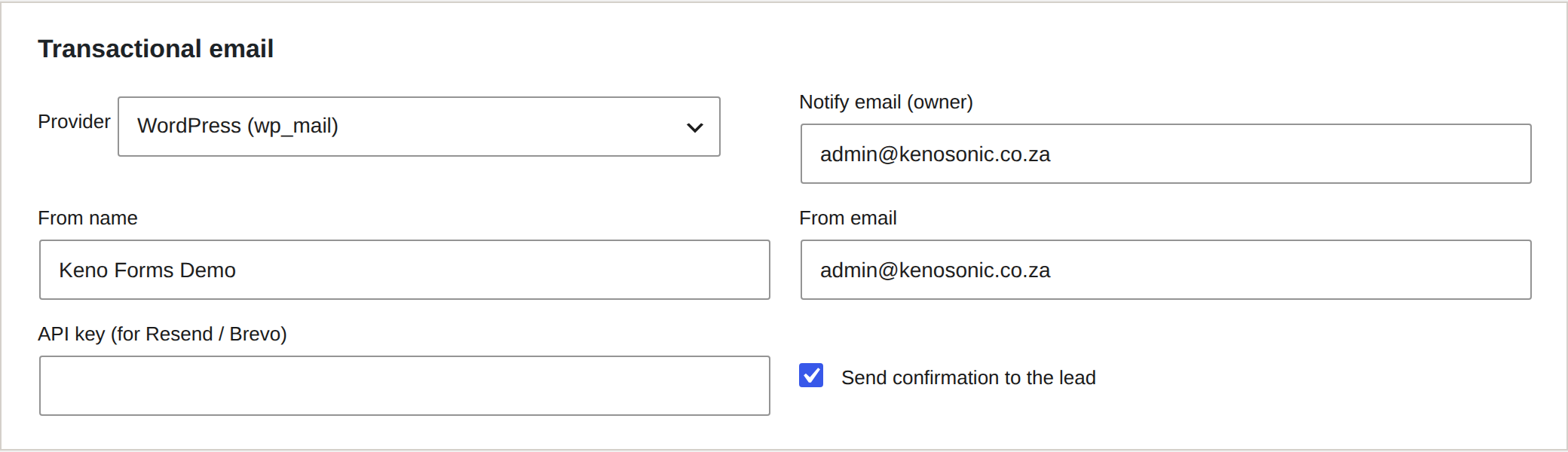
Transactional email
Sends the owner a "new lead" email and, optionally, sends the visitor a confirmation.
| Provider | You need |
|---|---|
| WordPress (wp_mail) | Nothing. The zero-config default. |
| Resend | API key |
| Brevo | API key |
Set the notify email (where owner notifications go), the from name and from email, and tick Send confirmation to the lead if you want visitors to get a confirmation.
Tip: for reliable delivery, use Resend or Brevo rather than wp_mail on shared hosting, where server mail often lands in spam.
Marketing list opt-in
When a visitor ticks the consent checkbox, Keno Forms subscribes them to your list. This only happens with explicit consent.
| Provider | You need |
|---|---|
| Mailchimp | API key (includes the datacentre suffix, for example -us21), audience id |
| Brevo | API key, list id |
| Resend | API key, audience id |
Choose the provider, enter the API key, and set the list / audience id. Leave the provider on None to disable the opt-in entirely.
Getting credentials
- Resend: create an API key in the Resend dashboard. For lists, create an Audience and copy its id.
- Brevo: SMTP & API > API Keys. Your list id is on the Contacts > Lists page.
- Mailchimp: Account > Extras > API keys. The audience id is under Audience > Settings > Audience name and defaults.
Reliability
Marketing and transactional sends run after the lead is stored locally, so if a provider is down the lead is still safe in Form entries and the owner can follow up manually.