Managing entries & export
Every valid submission is stored in WordPress as a private "Form entry" before anything is sent anywhere. Local storage is always the source of truth, so even if every CRM and email provider is offline, no lead is ever lost.
Browsing entries
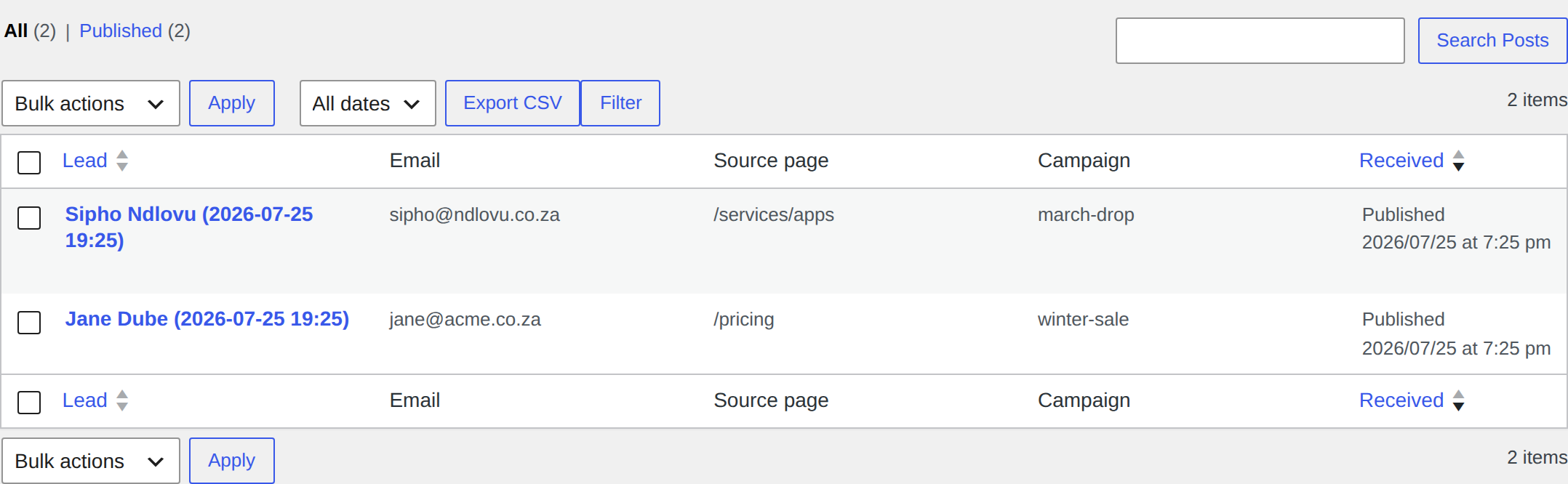
Go to Keno Forms > Form entries in wp-admin. The list shows, for each lead:
- the lead name,
- their email,
- the source page it was submitted from,
- the campaign source (channel plus first-touch UTMs),
- the date received.
Use the search box to find a lead by name. Open any entry to see the full field values, the detected source context, and the per-provider dispatch outcome (so you can tell at a glance whether HubSpot, your webhook, or the confirmation email succeeded).
Exporting to CSV
Click Export CSV at the top of the entries list to download every
submission. The file has a stable set of leading columns (id, received,
campaign, source_page) followed by one column per field key found across all
entries, so nothing is dropped even if your form changed over time. Multi-value
fields are joined with commas in their cell.
The export is handy for:
- handing finance or sales a spreadsheet of leads,
- analysing which pages and campaigns convert,
- fulfilling a POPIA / GDPR data-subject access request.
Retention
Entries stay until you remove them. Delete individual entries from the list to honour an erasure request. Keno Forms never phones home with your leads: the data only leaves your site through the providers you explicitly enable.